
Documentation
FastPassWP documentation
Set up automatic login for your newsletter subscribers, and get the most out of each setting.
How FastPassWP works
When you send a newsletter with Newsletter Glue or MailOptin, FastPassWP adds a signed login token and the subscriber’s email merge tag to the links that point to your site. When a subscriber clicks one of those links, FastPassWP checks the signature and the expiry, finds the WordPress user with that email address, logs them in and sends them on to the page they clicked.
Only users with a role you allow are logged in. Administrators are never logged in automatically.
Requirements
- WordPress 5.5 or later and PHP 7.4 or later.
- Your subscribers have WordPress user accounts on your site.
- You send your newsletter with Newsletter Glue or MailOptin. With Newsletter Glue, FastPassWP sets the right email merge tag for Mailchimp, MailerLite or Sendy automatically.
Install and update
- Download the FastPassWP zip you received after purchase.
- In WordPress, go to Plugins → Add Plugin → Upload Plugin, choose the zip and click Install Now.
- Click Activate.

FastPassWP doesn’t need a license key. New versions show up under Dashboard → Updates like any other plugin.
Send your newsletter
There is nothing extra to do. Write and send your newsletter in Newsletter Glue or MailOptin as you normally do. FastPassWP changes the links when the email is built, so every subscriber gets links that log them in.
Login links are signed rather than stored, so nothing is saved in your database for each newsletter.
Settings
Go to Settings → FastPassWP.
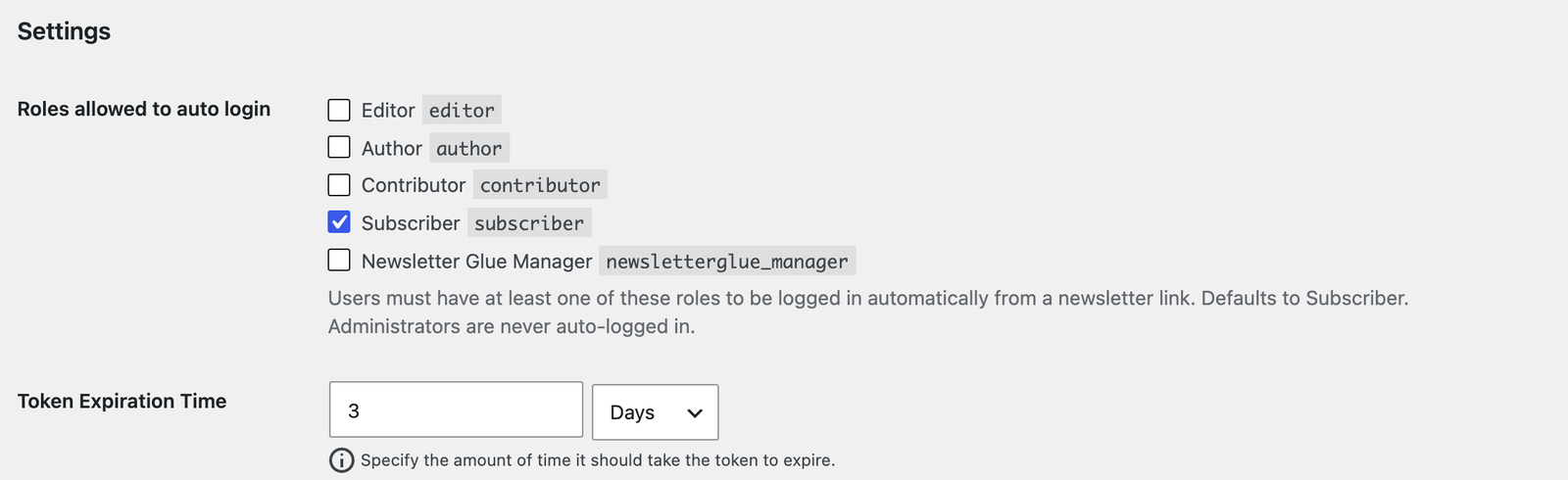
Token Expiration Time
How long a login link keeps working after the newsletter is built, in minutes, hours or days. The default is 72 hours. After that, the link still opens the page, but the subscriber isn’t logged in automatically.
Roles allowed to auto login
Tick every role your members have, for example a custom reader or member role created by your membership plugin. The default is Subscriber. Administrators are never logged in automatically.
Security options
Also under Settings → FastPassWP, in the Security section:
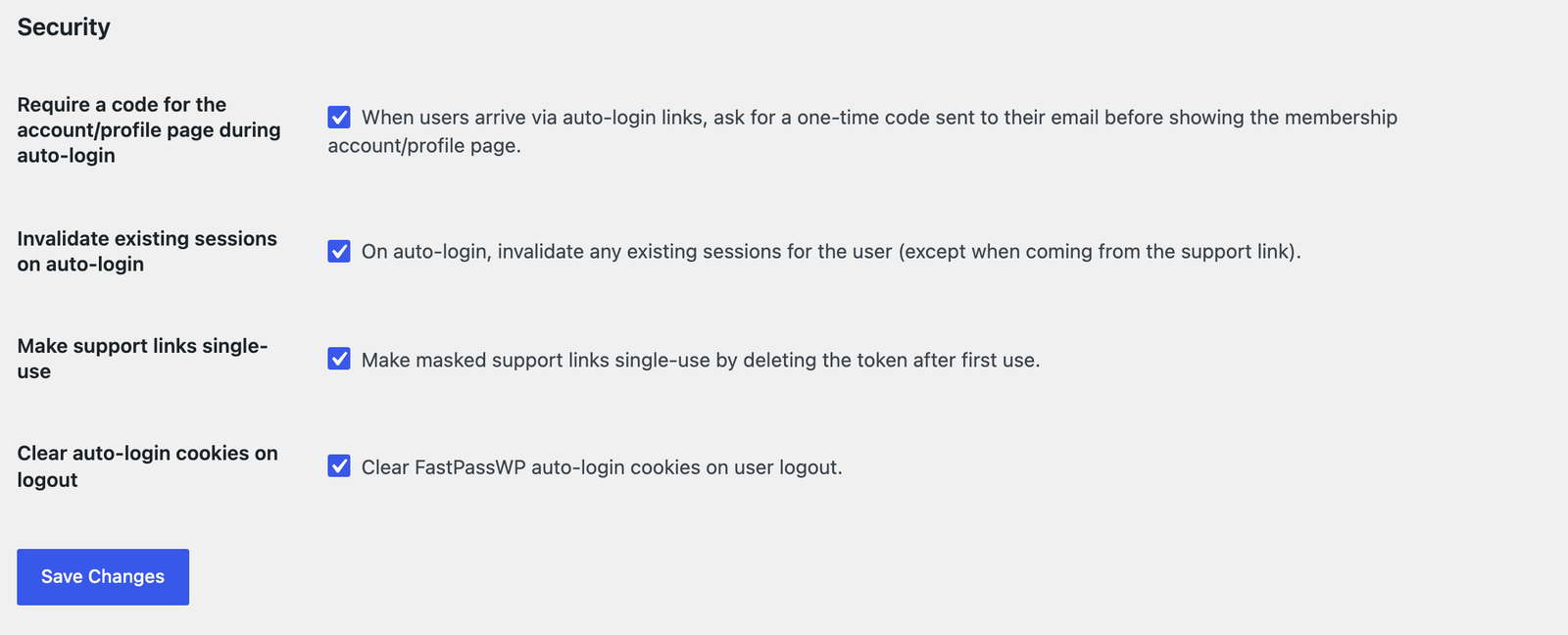
- Require a code for the account/profile page during auto-login. If someone arrives through a newsletter link and opens the account page, they are asked for a 6-digit code sent to the subscriber’s email. Codes expire after 10 minutes and allow 5 attempts. This stops a forwarded newsletter from opening someone’s account. Works with the Leaky Paywall and Memberful account pages.
- Invalidate existing sessions on auto-login. Logs the subscriber out of their other sessions when they log in from a link.
- Make support links single-use. A support link you copy from the Users screen works once. Off by default.
- Clear auto-login cookies on logout. Removes FastPassWP’s cookies when the subscriber logs out.
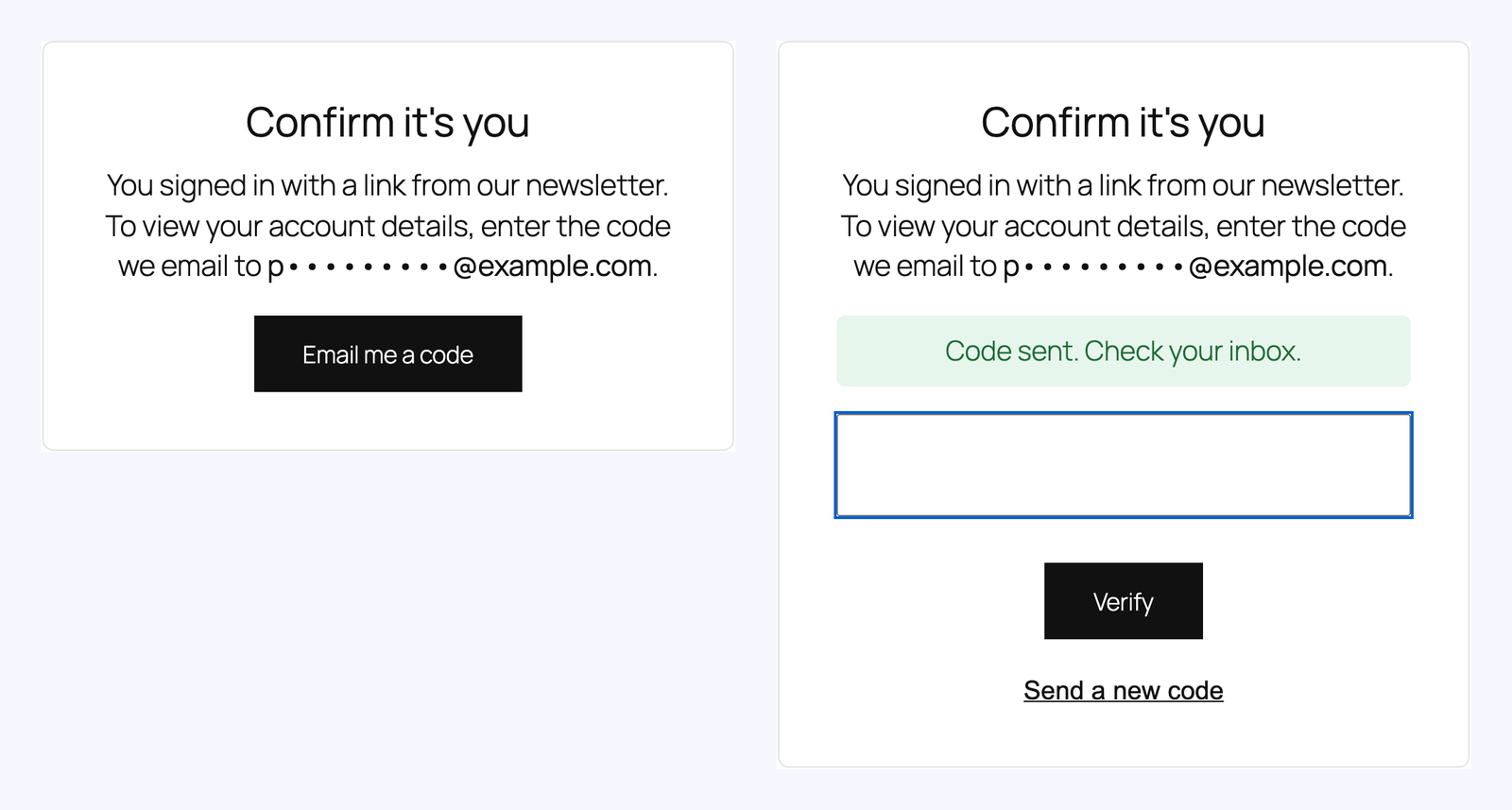
What subscribers see on the account page
The subscriber clicks Email me a code, then enters the 6-digit code from the email and clicks Verify. After that, the account page opens as usual.
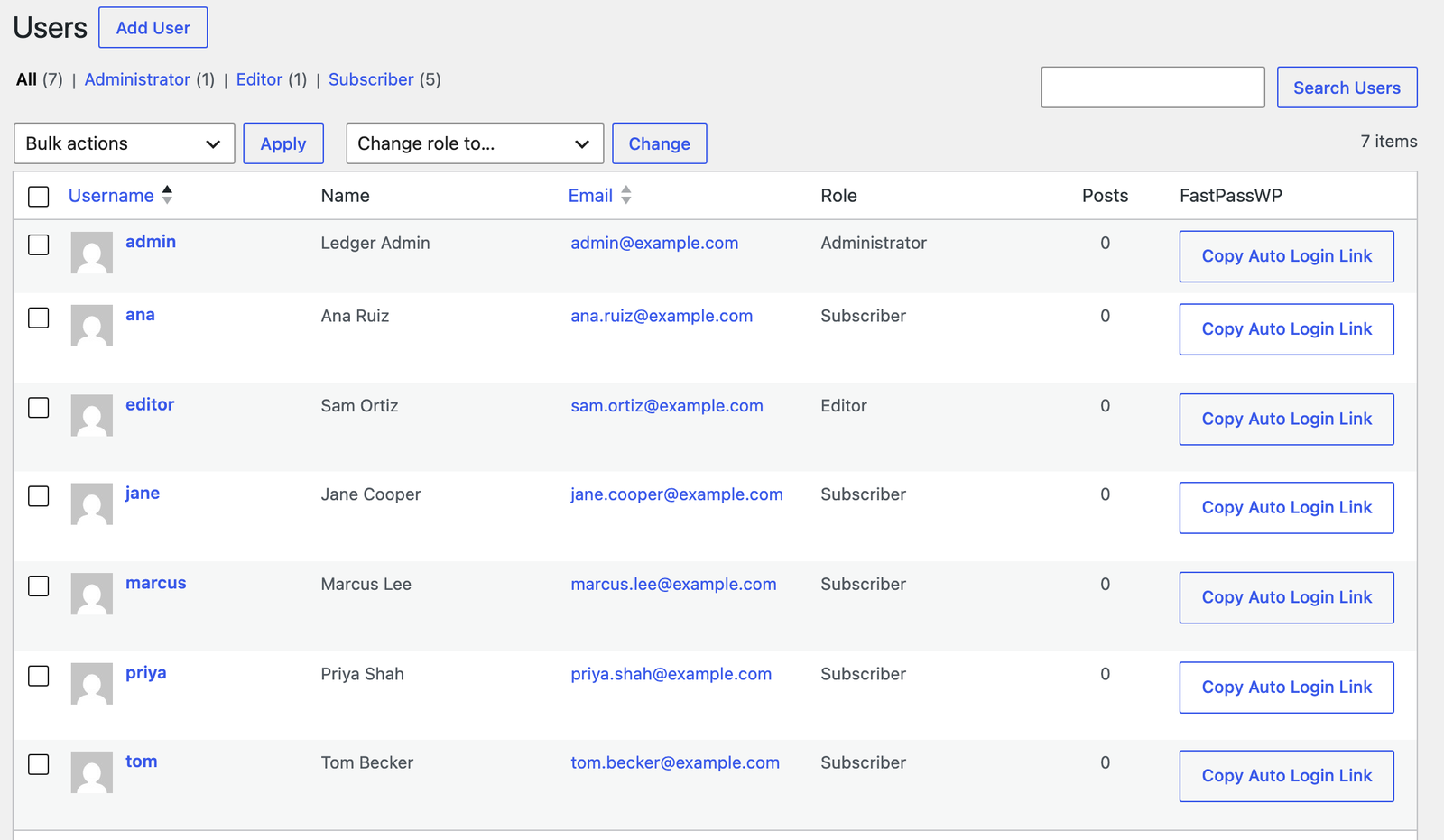
Support links
The Users screen has a FastPassWP column. Click Copy Auto Login Link next to a subscriber who is stuck, and send the link to them by email. Support links skip the account page code.
Login analytics
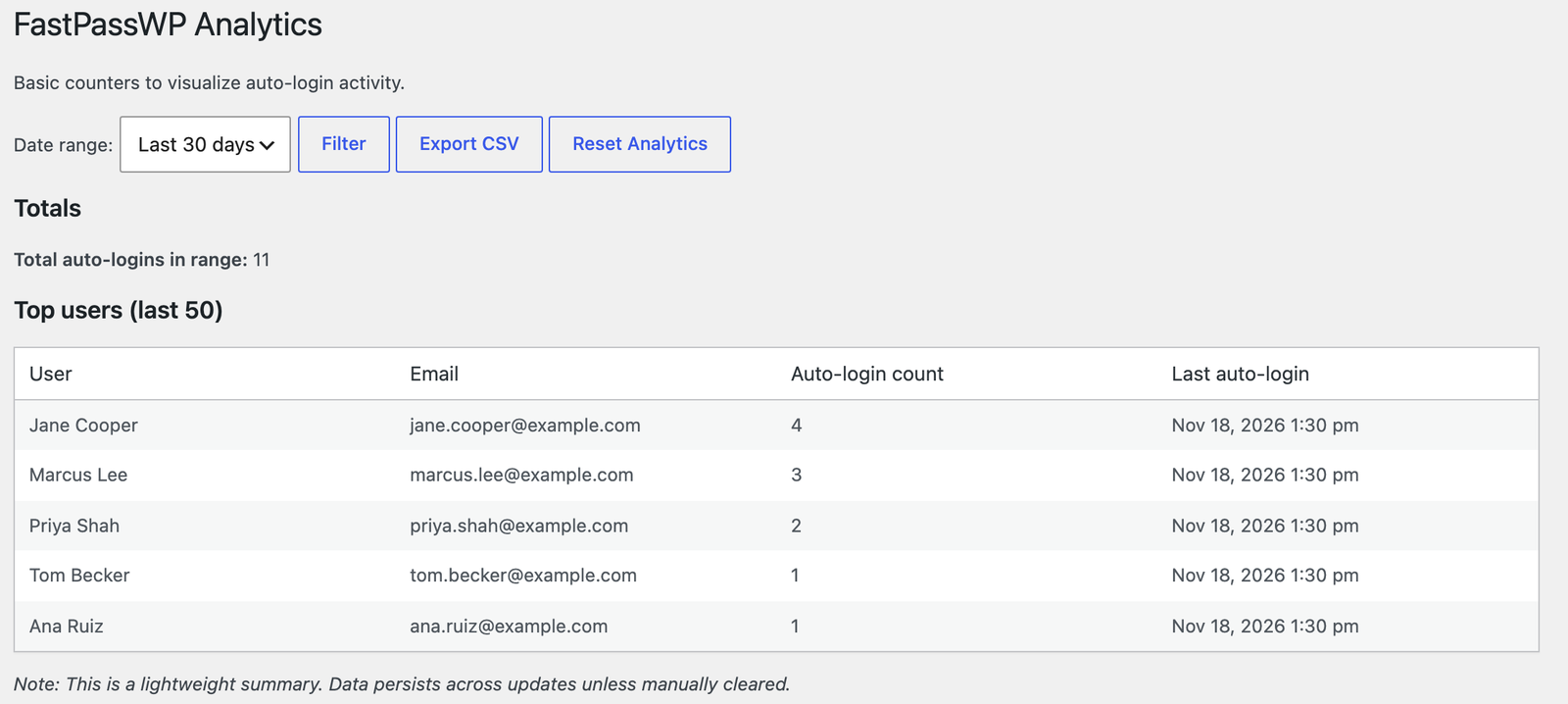
Go to Settings → FastPassWP Analytics to see how many automatic logins happened, in total and per user, for the last 7, 30 or 90 days. You can export the numbers as a CSV file or reset them.
Database cleanup
Versions before 1.6.6 stored a login token for every post in a newsletter and never removed them. If your site used an older version, Settings → FastPassWP shows how many of these rows are left, with a button to remove them. Removing them stops login links from before 1.6.6 working; newsletters sent since then are not affected.

Troubleshooting
The subscriber lands on the page but isn’t logged in
- Check that their WordPress user has one of the roles under Roles allowed to auto login.
- Check the newsletter isn’t older than the Token Expiration Time.
- Check that the email address they received the newsletter at matches the email on their WordPress account.
- Administrators are never logged in automatically. Test with a subscriber account.
Login links from an old newsletter stopped working
Links in newsletters sent before version 1.6.6 used stored tokens that newer versions no longer read. Links in newsletters sent after you update work normally.
Still stuck?
Contact us and tell us your site address, the plugin you send with, and what the subscriber sees.
Ready to drop the login wall for your subscribers?
One site license is $49 per month. Activate it, send your next newsletter, and you’re done.